
Build an image-classification dataset with three reviewers per image
This guide demonstrates one complete AI workflow: ask verified participants to label images, compare their answers, and send unclear images through another round of human review.
A repeatable workflow that turns two source images into labels you can use for analysis or model training.
- Input
- 2 images
- Coverage
- 3 reviewers each
- Output
- 6 labels
The workflow
Follow each image from upload to an approved label
Connect returns each participant's answer with the original item they reviewed. Use the item's ID to group answers, compare labels, approve good work, and send unclear images through another review.
Before you code
Choose the task experience
The API supports the same two task paths shown in the Connect app. Pick the simpler option that can express the response you need.
Data Labeling
Use the built-in experience for media links and straightforward typed, single-select, or multi-select responses.
- Image, audio, or video links
- Concise prompt and fixed response options
- No custom participant markup
Custom HTML
Use HTML forms or AWS Crowd HTML Elements for classification, ranking, comparison, annotation, and richer validation.
- Insert each item's data into your template
- Collect structured form data
- Preview the participant experience
<crowd-form>.Prepare the data
Give every image an ID and choose its reviewer count
Connect calls each item a task row. The headers name its fields, such as image_id and image_url, and the cells contain the values. Set participants to the number of different people who should review that item.
| image_id | image_url | participants |
|---|---|---|
img-001 | https://example.com/dataset/dog-001.jpg | 3 reviewers |
img-002 | https://example.com/dataset/cat-014.jpg | 3 reviewers |
The project's participants value must equal the total number of reviews you request. Two images reviewed by three people each require six project participants.
Design the task
Show each image in a Crowd HTML task
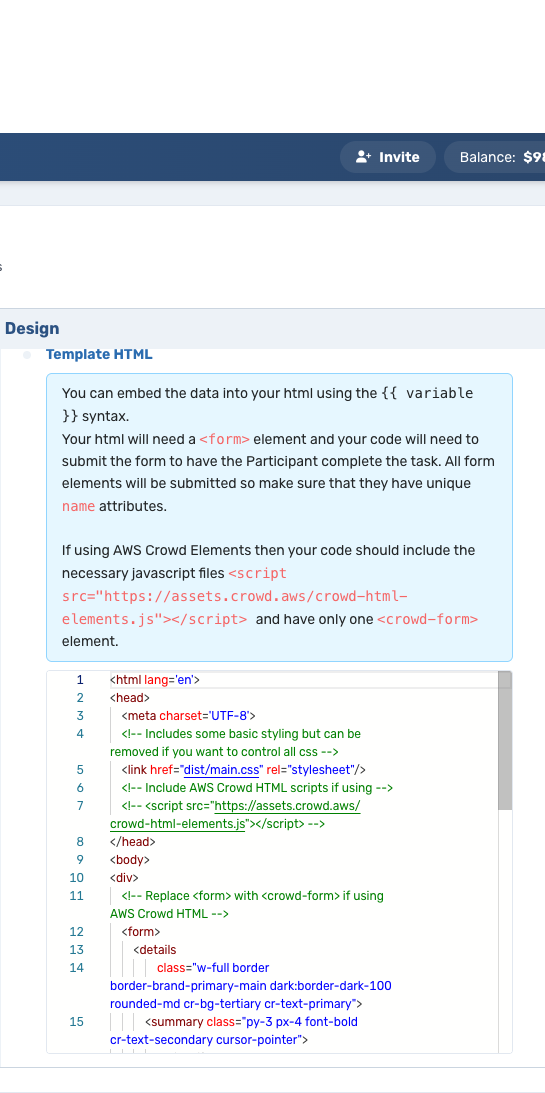
Use task.row_data to insert the assigned image's values into your HTML. The example below shows the image, lets a participant choose one of three labels, and submits that choice as structured data.
<html>
  <head>
    <script src="https://assets.crowd.aws/crowd-html-elements.js"></script>
  </head>
  <body>
    <crowd-form>
      <crowd-image-classifier
        name="label"
        src="{{ task.row_data['image_url'] }}"
        header="Which label best describes this image?"
        categories="['Cat', 'Dog', 'Other']">
        <short-instructions>
          Choose the primary subject. Select Other when neither label fits.
        </short-instructions>
      </crowd-image-classifier>
    </crowd-form>
  </body>
</html>
Why exactly one <crowd-form>?
Connect uses that form to detect when the participant submits an answer and to read the response. With more than one Crowd form, Connect cannot determine which form owns the submission, so the template is rejected.
Create the project
Combine the images, task design, and reviewer counts
This Python example creates an unpublished project and prints the project ID you will use to launch it, check progress, and review work. The idempotency token is saved to a file before the request is sent, so rerunning the script after a network problem or a crash retries with the same token instead of creating the project twice.
import os
import uuid
import requests

api = requests.Session()
api.headers.update({
    "X-API-KEY": os.environ["CONNECT_API_KEY"],
    "Content-Type": "application/json",
})

# Save the idempotency token to a file before the request, so a rerun
# after a crash or timeout retries the same action instead of repeating it.
# The automation guide explains this pattern step by step.
TOKEN_FILE = "create_project.token"

if os.path.exists(TOKEN_FILE):
    with open(TOKEN_FILE) as f:
        operation_token = f.read()
else:
    operation_token = str(uuid.uuid4())
    with open(TOKEN_FILE, "w") as f:
        f.write(operation_token)

template_html = """PASTE THE CROWD HTML FROM STEP 2 HERE"""
rows = [
    {
        "cells": [
            {"value": "img-001"},
            {"value": "https://example.com/dataset/dog-001.jpg"},
        ],
        "participants": 3,
    },
    {
        "cells": [
            {"value": "img-002"},
            {"value": "https://example.com/dataset/cat-014.jpg"},
        ],
        "participants": 3,
    },
]

project = {
    "name": "Image category review",
    "internalName": "vision-model-eval-2026-07",
    "participants": 6,
    "payment": 0.75,
    "estimatedTimeInMinutes": 3,
    "maxTimeInMinutes": 10,
    "summary": "Classify the primary subject in one image.",
    "instructions": "Review the full image before choosing one label.",
    "hasSensitiveContent": False,
    "deviceRequirements": ["Desktop", "Tablet"],
    "systemRequirements": [],
    "completionSettings": {
        "projectCompletionType": "CompletionCode",
        "value": "IMAGE-LABEL-DONE",
    },
    "demographicTargeting": {
        "targetOption": "GenPop",
        "languages": ["en"],
    },
    "taskTemplate": {
        "taskTemplateType": "CustomHtml",
        "headers": ["image_id", "image_url"],
        "data": rows,
        "settings": {"htmlTemplateMarkup": template_html},
    },
}

response = api.post(
    "https://connect-api.cloudresearch.com/api/v1/project",
    headers={"IDEMPOTENCY-TOKEN": operation_token},
    json=project,
)

response.raise_for_status()
project_id = response.json()["project"]["projectId"]
print(project_id)

# The project ID is recorded, so the operation is complete. Delete the
# token only now: if the process dies first, rerunning with the saved
# token returns this same stored response instead of a second project.
os.remove(TOKEN_FILE)The project starts as Unpublished. Preview the task and verify its cost in the Connect app before changing the status to Live.
Retrieve results
Match each label to the original image
After participants submit, request the project's assignments. Each assignment contains one participant's answer, the original image data, and the participant and assignment IDs you need for review.
response = api.get(
    f"https://connect-api.cloudresearch.com/api/v1/assignments/{project_id}"
)
response.raise_for_status()

for assignment in response.json()["assignments"]:
    task = assignment["templateAssignment"]
    source_row = task["taskData"]
    answer = task["submittedData"]["data"]

    print({
        "assignment_id": assignment["assignmentId"],
        "participant_id": assignment["participantId"],
        "source_row": source_row,
        "answer": answer,
    })
Your HTML controls the shape of the submitted answer. Keep each form field's name stable so your code can process results consistently.
Evaluate quality
Use reviewer agreement to decide what happens next
Connect collects each reviewer's answer. Your code then combines those answers. A majority vote works for simple labels; more complex tasks may need trusted reviewers, an expert to make the final decision, or different weights for different reviewers.
Accept the majority label and approve the completed assignments.
Keep the majority label or send the item to another reviewer or expert.
Check the image, instructions, and available label choices before collecting more answers.
Approve work, reject it with a reason, reverse a rejection, flag a quality issue, or send a bonus through the Assignments API. Give each bonus request a unique idempotency token so a retry cannot pay twice.
Improve the next round
Send uncertain images through another review
Keep the image ID, available labels, task version, assignment ID, and participant ID with every result. These details show where each training or evaluation record came from and make it easier to improve the next round.
Find uncertain items
Select model outputs with low confidence, rare labels, policy edge cases, and items where reviewers disagreed.
Improve the task
Clarify the instructions, revise the label choices, add examples, or assign specialized work to a group of trusted participants.
Collect another round
Create a new unpublished project, preview it, then launch only the items that need more review.
Measure the improvement
Compare reviewer agreement, the balance of labels, and model performance before accepting the new dataset version.
Next guide
Already have an MTurk task?
Keep your Crowd HTML and learn how MTurk HITs, workers, qualifications, review actions, and bonuses translate to Connect.