
Move an MTurk or Crowd HTML task to Connect
Keep the task experience you already built, replace your MTurk API calls with Connect projects and assignments, and use verified participants, reusable groups, and end-to-end automation.
Move one image-classification HIT to Connect without rebuilding the task participants see.
- Keep
- Your Crowd HTML
- Replace
- MTurk API calls
- Gain
- Connect project controls
Concept map
See how MTurk concepts translate to Connect
Many names are similar, but the steps for creating and running work are different. Use this table to decide what changes before updating your code.
| MTurk | Connect | What changes |
|---|---|---|
| HIT | Project | Create it unpublished, preview it, then launch or schedule it. |
| Assignment | Assignment | Each assignment is one participant's work. Use its participant or assignment ID when reviewing it. |
| Worker ID | Participant ID | Store the Connect ID returned with every assignment. |
| HTMLQuestion | Custom HTML | Move the task body into htmlTemplateMarkup. |
| Crowd HTML Elements | Custom HTML | Keep the Crowd script and one <crowd-form>. |
| Qualifications | Targeting + groups | Choose who can participate by demographics, participant ID, earlier project activity, or membership in a saved group. |
| Approve / reject / bonus | Assignments API | Review multiple assignments at once and use a unique token to prevent duplicate bonuses. |
| NotifyWorkers | Conversations API | Send individual or bulk project messages. |
Move the task design
Keep your Crowd HTML and change how item data is inserted
Connect supports AWS Crowd HTML Elements inside a Custom HTML task. Keep the Crowd library and form, then replace MTurk template variables such as ${image_url} with Connect's task.row_data syntax.
<crowd-image-classifier
  name="label"
  src="${image_url}"
  categories="['Cat','Dog','Other']">
</crowd-image-classifier><crowd-image-classifier
name="label"
src="{{ task.row_data['image_url'] }}"
categories="['Cat','Dog','Other']">
</crowd-image-classifier>Load https://assets.crowd.aws/crowd-html-elements.js and include exactly one <crowd-form>. Connect checks these requirements before you can launch.
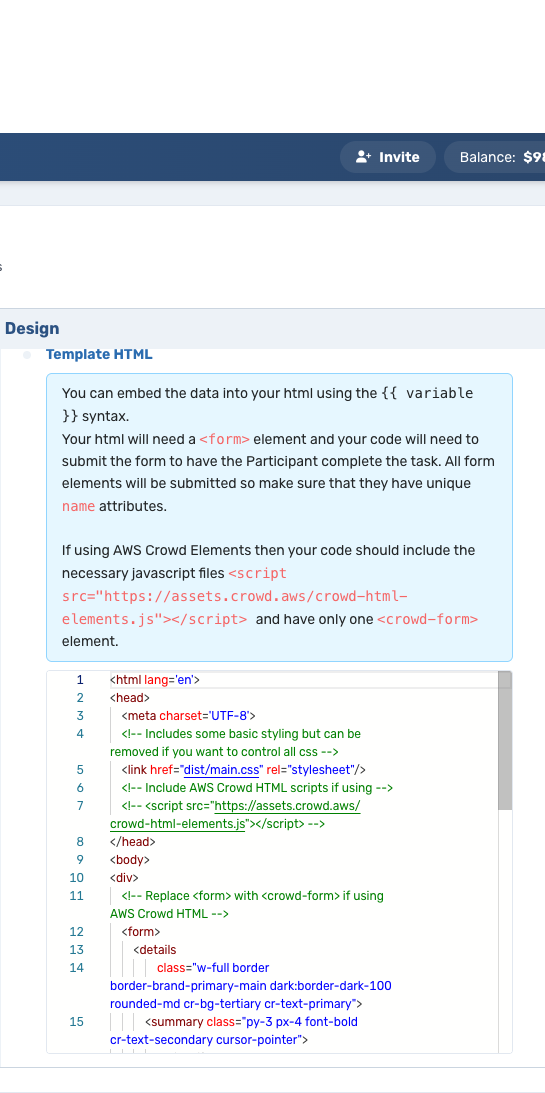
{{ variable }} syntax and the single-Crowd-form requirement next to the real task markup.Move the item data
Turn each HIT input into a Connect task row
Connect calls each item a task row. List the field names in headers, then add one cells array for every item. Put the cell values in the same order as the headers.
{
  "taskTemplateType": "CustomHtml",
  "headers": ["source_id", "image_url", "model_label"],
  "data": [
    {
      "cells": [
        { "value": "item-0001" },
        { "value": "https://example.com/images/0001.jpg" },
        { "value": "Dog" }
      ],
      "participants": 3
    }
  ]
}
The project's participant total must equal the total number of reviews you request across all rows. In this example, three participants review the one image. This replaces MTurk's assignment count.
Replace qualifications
Choose who can participate
Run the Connect project
Create, preview, launch, check progress, and review
New projects start unpublished, so participants cannot see them yet. Preview the task in the Connect app, launch it to a small number of people, and increase the size only after you confirm the task and results work as expected.
Migration checklist
Test one complete task before scaling up
- 1Preview every type of item data
Check typical, empty, long, and special-character values in the task.
- 2Submit the form as a participant
Confirm every named field appears in
templateAssignment.submittedData. - 3Verify the reviewer count
Check that the project participant total equals the number of reviews requested across all items.
- 4Test the full project flow
Create an unpublished project, preview it, launch it to a small group, retrieve results, and approve the work.
- 5Test safe retries and error tracking
Reuse an idempotency token only when retrying the same request, and save the response's
X-TRACE-IDwhen something goes wrong.
Next guide
Automate the steps around the task
Learn how to start projects from your system, check progress, review and pay participants, send messages, and invite trusted reviewers again.